What changed
Sponsored Display shows your product to an Amazon audience, such as people who are searching or shopping in a category right now. In EcomVision, you create this type of campaign in Create SD Audience Campaign. For safety, the campaign starts paused (unless you check Create as enabled): it exists in your account, but it is not shown to anyone and does not spend.
Now there are two ways to turn the campaign on (or off) without leaving the app:
- the ▶ Enable now button, right after you create it;
- the new Sponsored Display tab on the Campaigns screen, with ▶ Enable and ⏸ Pause on each campaign.
Both changes take effect right away in your live Amazon account and are logged in the Change log, where you can undo them.
Enable it right after creating
- In the side menu, open Main › Campaigns, click the small arrow ▾ next to Campaigns and choose Create SD audience campaign.
- Choose the audience and click Create SD campaign for this audience.
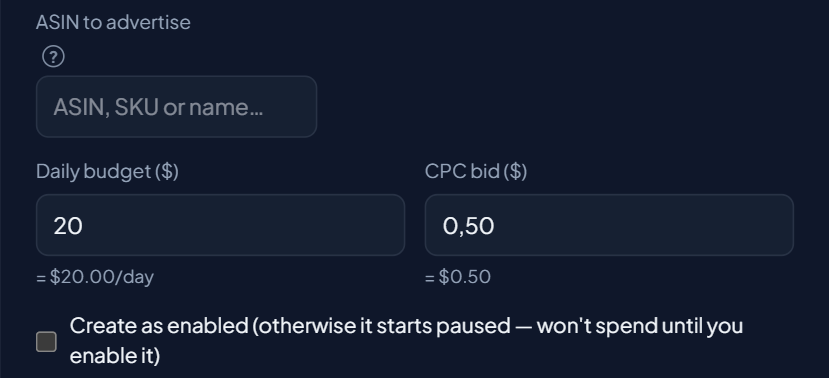
- In the form, pick the product in ASIN to advertise and fill in the Daily budget and the CPC bid. Leave Create as enabled unchecked if you want to check everything first.
- Click Create campaign (spends money). The screen confirms "Campaign created!" and warns: "It was created PAUSED — it won't spend until you enable it."
- Want to turn it on now? Click ▶ Enable now, read the "Enable Display campaign on Amazon?" window and click Enable. The message changes to "It is ENABLED — it can start spending now."
- Rather enable it later? Click the Campaigns › Sponsored Display link and enable it whenever you want.
Enable or pause from the Sponsored Display tab
The Campaigns screen now has three tabs: Sponsored Products, Sponsored Brands and Sponsored Display.
- In Active account, at the top of the side menu, choose the account.
- Open Main › Campaigns and click the Sponsored Display tab. The list comes live from Amazon, with enabled campaigns first. Each row shows the name, the state (Enabled or Paused), the daily budget and the ID. Archived campaigns do not show up.
- Click ▶ Enable on a paused campaign, or ⏸ Pause on an enabled one.
- Confirm in the "Enable Display campaign on Amazon?" window (or "Pause Display campaign on Amazon?") by clicking Enable (or Pause). Cancel closes it without changing anything.
- The badge switches right away and you see "Campaign “name” enabled." (or "paused.") with the View in Applied changes link, which opens the Change log.
The ↻ Refresh button fetches the list from Amazon again. Display spend and sales are still added to the cards at the top of the Sponsored Products tab.
Check and undo
Every time a Display campaign is enabled or paused, a row is saved in the Change log, showing who did it, when, and which campaign was enabled or paused. If it was changed by mistake:
- In the side menu, open System › Change log and click the Ads actions tab.
- Find the campaign's row (you can search by name) and click ↩ Undo.
- In the "Undo this action on Amazon?" window, click Undo. The campaign goes back to the state it had before, and a message confirms that the Display campaign is enabled (or paused) again on Amazon.
The row then shows ↩ Undone, and a new row records the undo.
What this brings to your account
- No surprise spend: the campaign still starts paused. You check the product, budget and bid, and only then turn it on, with one click.
- Less time: creating, enabling, pausing and tracking all happen in the same place, without switching tools or hunting for the campaign in the Amazon console.
- A trail and a way back: you know who turned each campaign on or off, and ↩ Undo fixes a wrong click.
- Your team is protected: users with a read-only profile see the tab, but cannot change anything in the account.
Messages you may see
- "This account doesn't have access to Sponsored Display on Amazon.": the account's advertising profile does not have access to Display. There is nothing to adjust in the app.
- "Your profile is read-only.": your user can only view. Ask the account administrator to allow editing in Team.
- "An archived campaign cannot be enabled or paused.": an archived campaign does not come back. Create a new one.
- A message saying Amazon rejected the state change: Amazon did not accept the change, and the reason comes after the colon. Try again; if it keeps happening, contact support.