What Stock protection does
Stock protection is a tab on the Logistics / Shipments screen, in the Operations group of the menu. When it is on, it looks at each advertised FBA product and decides:
- Pause: when FBA stock hits zero or lasts less than the limit you chose (default: 7 days). It pauses the item's product ads in your Sponsored Products campaigns.
- Re-enable: when stock comes back and goes above the limit plus a buffer (default: 3 days). It re-enables only the ads it paused itself.
- Leave the campaign alone: the campaign stays active. Its other products keep advertising.
It runs at every stock read, every 2 hours from 9 am to 9 pm (Brasília time), and also when you click Check now.
How cover is calculated
Cover is how many days your FBA stock lasts at the current sales pace:
Sales include organic and ads. Example: 56 units in FBA and 114 sold in 30 days is 3.8 per day. Cover is 14.7 days. With a 7-day limit, this product keeps advertising.
When it pauses and when it re-enables
With the default values (pause below 7 days, 3-day buffer):
| Product situation | What protection does |
|---|---|
| Zero FBA stock | Pauses the product's active ads |
| Cover below 7 days | Pauses the product's active ads |
| Cover between 7 and 10 days | Nothing changes. What was already paused stays paused (that is the buffer) |
| Cover of 10 days or more | Re-enables the ads it paused |
| Has FBM stock to sell | Does not pause, because the product still sells |
| No sales in the last 30 days | Only pauses if stock hits zero |
| Stock not read yet | Does nothing |
The buffer keeps the ad from pausing and re-enabling at every read. The product only goes back to advertising when stock has a safety margin.
How to turn it on
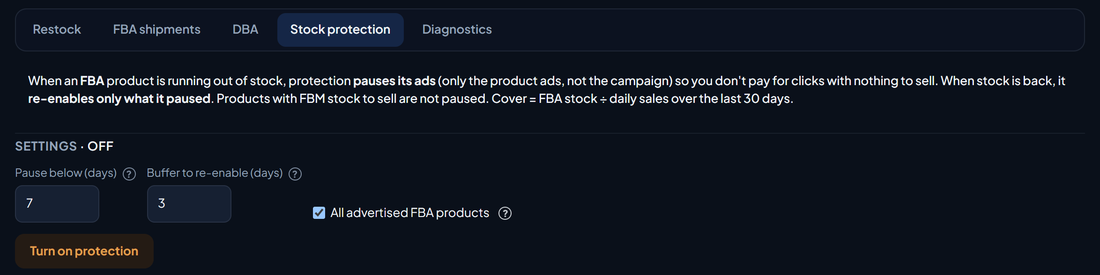
- In the menu, open Operations › Logistics / Shipments and click the Stock protection tab.
- In Settings, set Pause below (days) and Buffer to re-enable (days).
- Leave All advertised FBA products checked. Or uncheck it and list only the ASINs you want to protect, one per line.
- Click Turn on protection and confirm. The confirmation window shows the pause and re-enable days that apply to your account.
Users with read-only access see the status but cannot change the settings.
Current status and history
Below the settings, Current status shows what protection would do with the latest stock read. It shows up even with protection off, so you can check before turning it on. Each row is a product:
- FBA stock: units available in FBA at the last read;
- 30-day sales: units sold, organic plus ads;
- Cover: how many days that stock lasts;
- Active ads: how many of the product's ads are active, out of the total in your campaigns;
- Paused by protection: how many it paused that are still paused;
- Next action: Will pause, Will re-enable, No change or Paused, waiting for stock, always with the reason.
With protection on, Check now applies it right away, directly on Amazon, using the latest stock read. First, a window tells you how many products will be paused. At the end, the screen shows how many ads were paused and re-enabled, and how many Amazon rejected, if any.
Further down, History (30 days) lists each ad paused by protection: when it was paused, the reason (zero stock or the cover at that moment), when it came back and how it ended.
Undo, notices and turning it off
- Every pause is logged in the Change log, under Ads actions, with an Undo button. When you undo, the ads come back and protection does not pause that product again until stock recovers.
- Changed the ad yourself? If you re-enable an ad that protection paused, protection leaves that ad alone.
- Notices: every run that pauses or re-enables something creates a notice in Notifications.
- Turning it off: the ads it paused stay paused until you re-enable them. You can re-enable them in Bulk actions, on the products tab, or by undoing each pause in the Change log.
Action plan
- Check the status: with protection still off, see in Current status which products it would pause today.
- Choose the days: if restocking takes a while, a higher limit pauses earlier. If the product sells well until the end, a lower limit holds back less.
- Turn it on: for all advertised FBA products or only for the ASINs you list.
- Restock: the pause only holds back spend. Plan the shipment in the Restock tab of the same screen. See also how to predict stockouts.
- Follow up: check the History and Notifications. If a pause doesn't make sense for a product, undo it in the Change log.