
Why two pages for the same product cost you sales
On Amazon, each product page (ASIN) collects its own reviews, its own sales history and its own position in search. When the same product is spread across two pages, all of that is split:
- Duplicate ASIN: the same barcode (UPC or EAN) is listed on more than one ASIN in your account. Reviews and sales end up half on each page, and Amazon does not allow duplicate pages for the same product.
- Variation outside its family: a color or size that should sit with the others left the variation family and now has its own page. It doesn't add up the family's reviews and shows up separately in search.
Both cases are hard to spot in Seller Central, because each page stays live and keeps selling. Sellers usually notice only when a product that has sold for months still has few reviews. To see why reviews and conversion weigh so much, read Amazon Impressions but No Sales: What to Do.
What EcomVision checks
Every day, in the account's listing check, EcomVision compares the products it already has on file and looks for both problems:
| Alert | When it shows up |
|---|---|
| Duplicate ASIN | The same barcode (UPC, EAN or GTIN) appears on 2 or more active ASINs in the account. The parent ASIN of a variation family is not counted. |
| Variation outside its family | An ASIN with no parent, from the same brand, has almost the same name as the children of a variation family in the account. Color, size, quantity and measurement words (such as "black", "L" or "16 oz") are ignored in the comparison. |
The check only uses data EcomVision has already collected from the account. It changes nothing on Amazon. To avoid false alarms, the variation alert only considers ASINs that Amazon has confirmed have no parent, and names with at least three words once color and size are removed.
Both are status alerts: they stay open while the problem exists and clear on their own once it's fixed.
Where the alert shows up
- In the notification bell at the top of the screen, and on the notifications page.
- In the Action center (Operations › Action center), as an attention priority.
The alert says how many cases were found, shows an example and says what to do:
- For a duplicate ASIN, the example shows the barcode and the ASINs that use it.
- For a variation outside its family, the example shows the loose ASIN and the parent ASIN of the family it resembles. The alert card lists each loose ASIN, with its SKU.
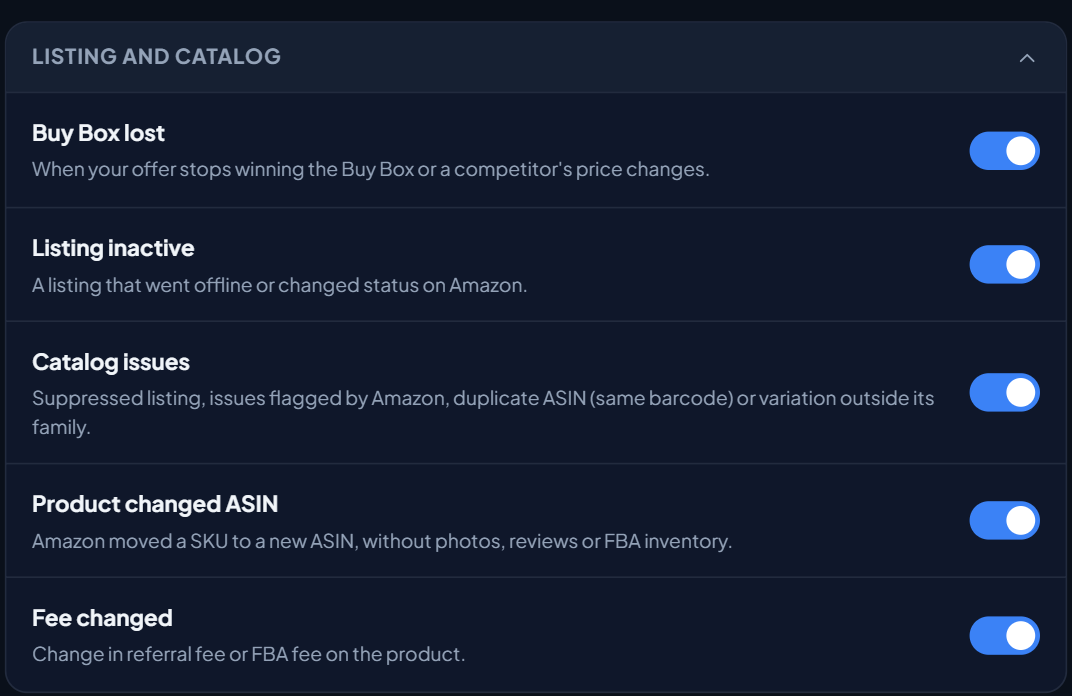
The alert's link takes you to the Listing optimizer, where you check the products. Both types are part of the Catalog issues item in Settings › Notification preferences, under Listing and catalog. It comes turned on. Turning it off hides the alert in the bell and on the notifications page, in that browser only: it doesn't delete the alert or remove the Action center priority.
What to do with a duplicate ASIN
- Copy the barcode from the alert and search for it in the Listing optimizer. The search box takes ASIN, SKU, name or EAN, so the ASINs that share the code show up together.
- Check that it really is the same product: same brand, model, color, size and pack quantity. If it isn't, the barcode is wrong on one of the listings: fix that listing in Seller Central.
- If it is the same product, keep a single ASIN. Usually the one with more reviews and more sales. The alert itself recommends it: keep one ASIN and ask Amazon Selling Partner Support to merge the pages.
- Wait for the next check. Once only one active ASIN in the account uses that code, the alert clears on its own.
What to do with a variation outside its family
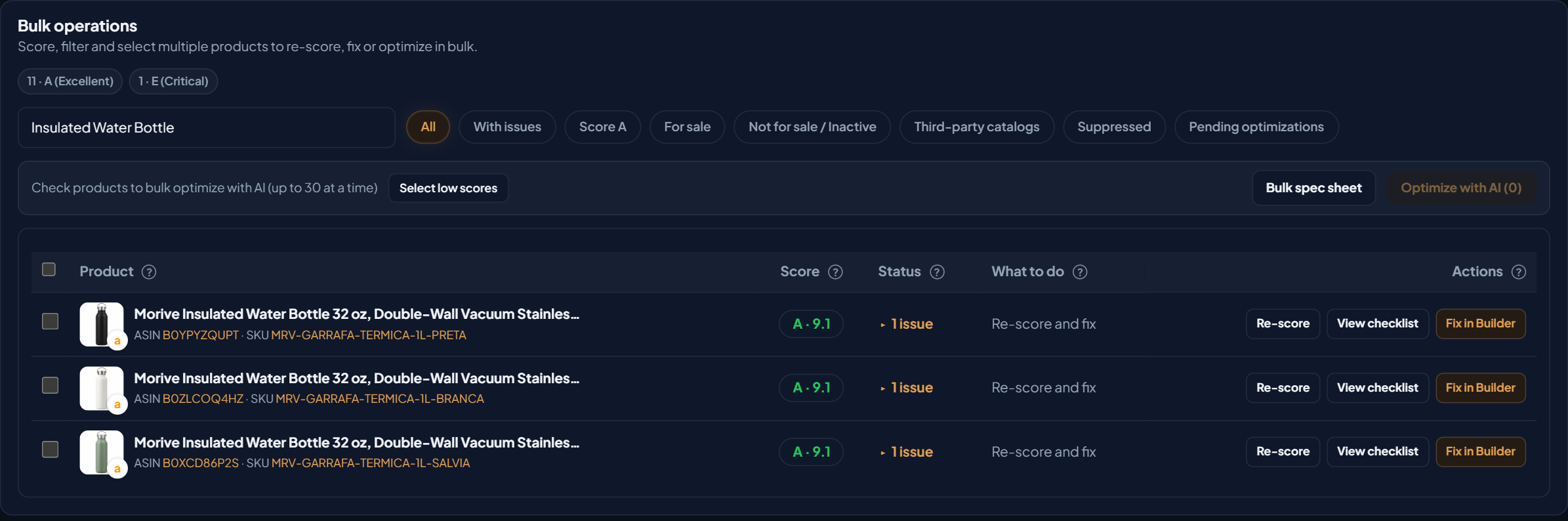
Picture an insulated bottle sold in three colors, like the one in the screenshot above. All three should sit in the same variation family, under one parent ASIN, and add up their reviews. If the sage color leaves the family, it gets its own page, starts counting reviews from zero and shows up separately in search.
- Open the alert and note the loose ASIN and the parent ASIN of the similar family.
- Check in Seller Central whether the product really should be a color or size of that family.
- If so, link the product back to the parent ASIN in the variation family in Seller Central.
- If the product is different on purpose (a new model, for example), there's nothing to fix: you can dismiss the alert on the notifications page.
To review how the product is listed and how Amazon scores listing quality, read How to List Products on Amazon and What CDQ Is.
What about the demo account?
The EcomVision demo account has no duplicate ASIN and no loose variation, so the alert doesn't show up there. The screenshots in this article show where the alert is turned on and where you fix the problem. In your account, if either case exists, the alert shows up after the daily listing check.