Why the date matters
Picture an invoice issued on the 1st and imported into the app only on the 10th. Before, the new cost applied from the 10th: sales from the 1st to the 9th kept the old cost, and profit for those days was wrong, either too high or too low. Now the invoice cost applies from the 1st, the issue date. A delay in importing the invoice no longer distorts your margin.
The cost used is the item's landed cost: the supplier price plus non-recoverable taxes, freight and inbound expenses. That value becomes the product cost (COGS) and goes into profit in Costs, Dashboard, Sales and the Income Statement (P&L).
How the rule works
- Applies from the issue date: sales from the issue date onward use the invoice cost. Days before the issue date do not change.
- A newer cost is never overridden: if you already had a cost starting after the issue date (from a more recent invoice or entered by hand), it keeps applying from its own date. The older invoice only applies to the stretch between its issue date and that newer cost.
- Invoice without an issue date: if the issue date could not be read, the cost applies from the day of the import.
- First cost for the product: if the product had no cost yet, the invoice cost applies from the start.
- Only changes when you say so: the cost is only updated on the items where you checked Update this product's cost (COGS) with this invoice. Without that check, the purchase is recorded and the cost stays the same.
None of this changes anything on Amazon. Suppliers, purchases and costs are your own data.
Step by step: import the invoice and update the cost
- In Active account, at the top of the side menu, choose the account.
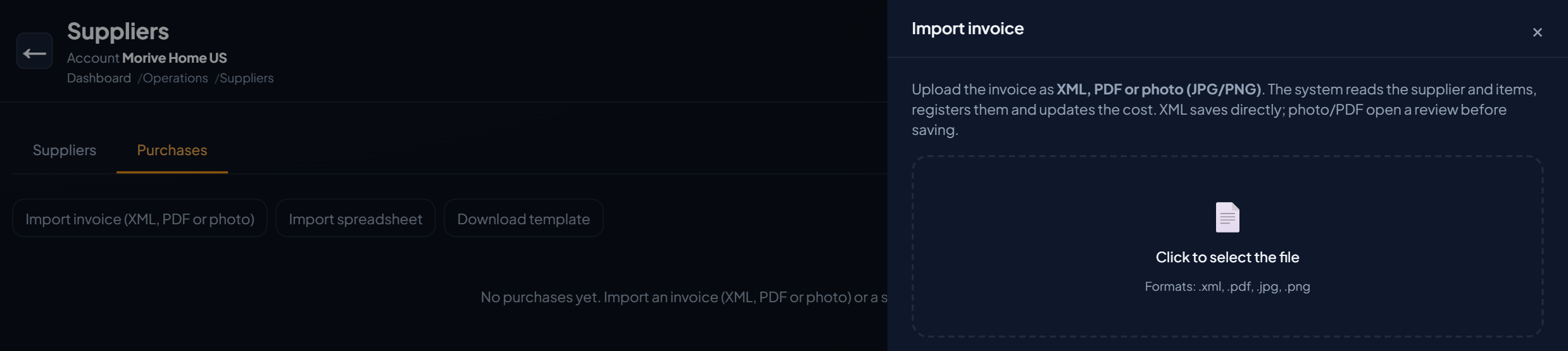
- In the side menu, open Operations › Suppliers, go to the Purchases tab and click Import invoice (XML, PDF or photo).
- Use Click to select the file to choose the invoice (a PDF or a photo of the invoice works, and so does an XML file, up to 5 MB). "Reading the invoice…" appears.
- In the review, check the read-quality badge and the Supplier (issuer).
- Check each item. If any item shows Pending, type in the product's ASIN.
- On the items whose cost should change, check Update this product's cost (COGS) with this invoice. Hover over the help icon next to it to see the date rule.
- Click Confirm and save. "Invoice saved!" appears, with the number of items matched and costs updated.
How to check it
- In the Purchases tab of Suppliers, the Issue date column shows the date from which the cost applies.
- In Costs, open the product and look at Cost history: the new period starts on the invoice's issue date.
- In the Income Statement (P&L) and in profit per product, sales since the issue date already show the new cost. You don't need to recalculate anything.
What about invoices I had already imported?
Invoices imported before this change were moved to their issue date, with one exception: if you had entered another cost for the product between the issue date and the import day, that cost was kept, because it was your decision. In that case, the invoice still applies from the day it was imported.
Because of this, profit and margin for the period between the issue date and the import of those invoices may change slightly: they now use the invoice cost. The current cost of each product does not change.
What this brings to your account
- Margin true to what happened: each sale uses the cost of goods that applied on that day, even if the invoice was imported later.
- No rush to import: importing the invoice a week later doesn't spoil that week's profit.
- Protected history: an older invoice never overrides a newer cost.
- Better decisions: with the right cost, it's clearer which products and campaigns really make a profit.