The problem: a list full of stopped campaigns
Pausing or archiving a campaign does not delete it. It stays in the account with its history and shows up in every list next to the ones that are running. The same goes for ad groups, keywords and targets.
In an account with a few years of advertising, that becomes a long list where active campaigns are mixed in with stopped ones. And that list is exactly where you make decisions that change the account:
- When you set up an automation: you check a paused campaign thinking it is the live one, and the rule does nothing. Or you leave out the campaign that needed it most.
- When you run a bulk action: you change the budget or bid of a campaign that is not even running and assume the account is tuned.
- Day to day: every search means scrolling the list and reading name after name.
Active only came from an EcomVision customer's request: they kept getting lost among paused campaigns when choosing where their automations applied.
What the Active only button does
- It starts on. When the list opens, you only see active campaigns, ad groups, keywords, targets or ads.
- It hides what is paused or archived. Nothing is deleted or changed on Amazon: it is just a screen filter.
- It never hides what you already checked or chose. If an old rule applies to a campaign that was later paused, that campaign stays visible, still checked.
- It tells you how many are hidden. A line below the list says, for example: "N paused or archived item(s) hidden by the Active only filter."
- One click shows everything again. Click the button to turn the filter off and see paused and archived items too.
- "Select all" only checks what is on screen. With the button on, the hidden paused items are left out.
In Campaign automation
This is where the filter helps the most: choosing which campaigns a rule applies to. With a ready-made template:
- In the menu, open Campaigns › Campaign automation, click the Use a template card and then New template.
- Pick the goal (for example, Pause non-sellers) and the intensity under How aggressive?.
- Under Which campaigns?, the Active only button is already on. Check campaigns in the list, use Filter campaigns... to find one by name, or Select all to check everything that is showing.
- If you check nothing, the automation applies to every campaign in the account. The filter only changes what the list shows, not what the rule covers.
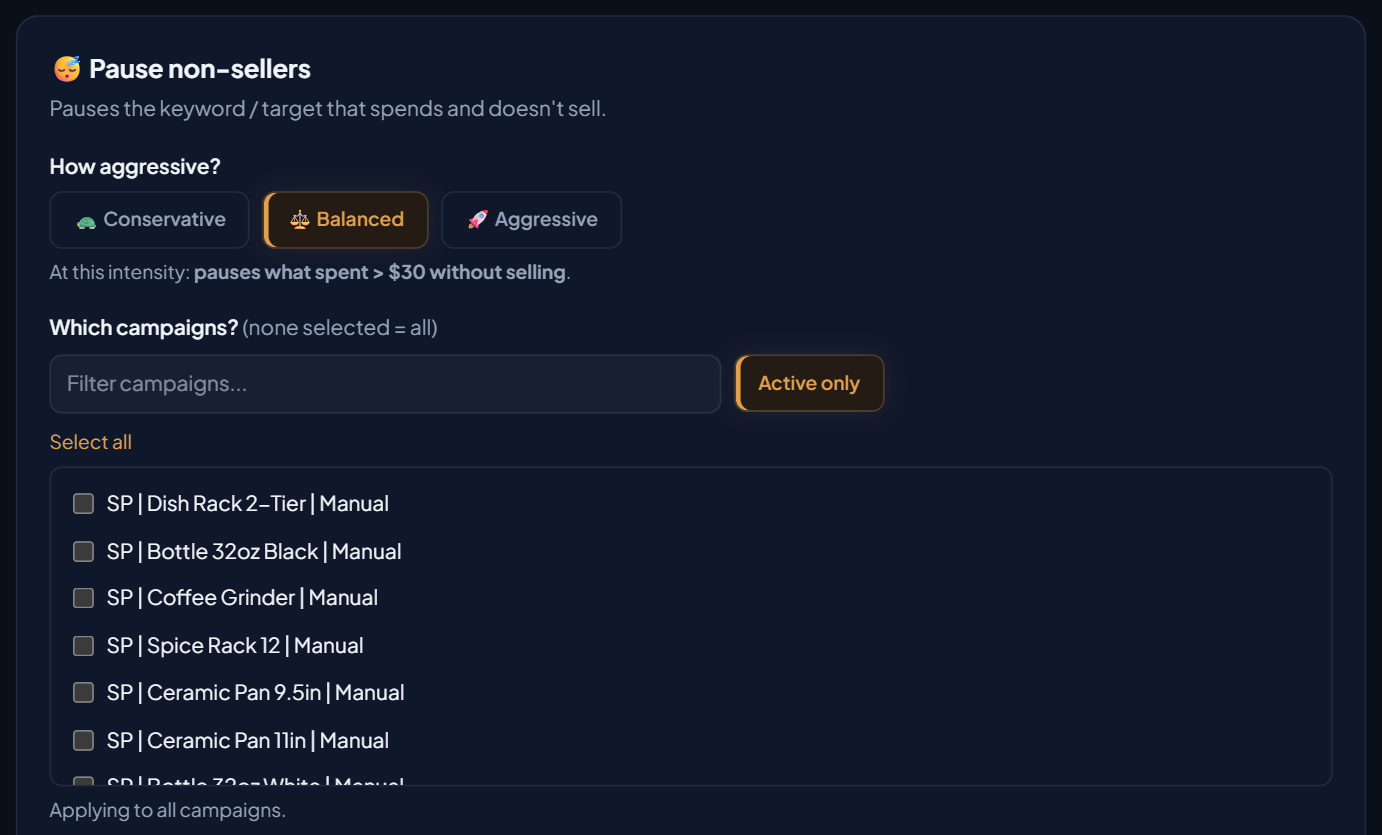
In an advanced rule (the Create advanced rule card), the button sits under Where the rule applies, for campaigns and ad groups. There too, with the button on, Select all only checks active items. Learn more about rules and templates in Ads Automation.
In Bulk actions
Before changing the budget, strategy or status of many campaigns at once, the list should show only what matters:
- In the menu, open Advertising › Bulk actions › Campaigns.
- Next to the search box, the Active only button is already on. When campaigns are hidden, the counter shows how many are visible out of the total, and a line below the table says how many were left out.
- Check the campaigns. The header checkbox checks everything that is showing.
- Click Bulk action (N) and choose the action. The confirmation window lists how many and which campaigns will change before anything happens on Amazon.
Want to re-enable a paused campaign? Turn Active only off, or type "paused" in the search box: the search shows those campaigns even with the button on.
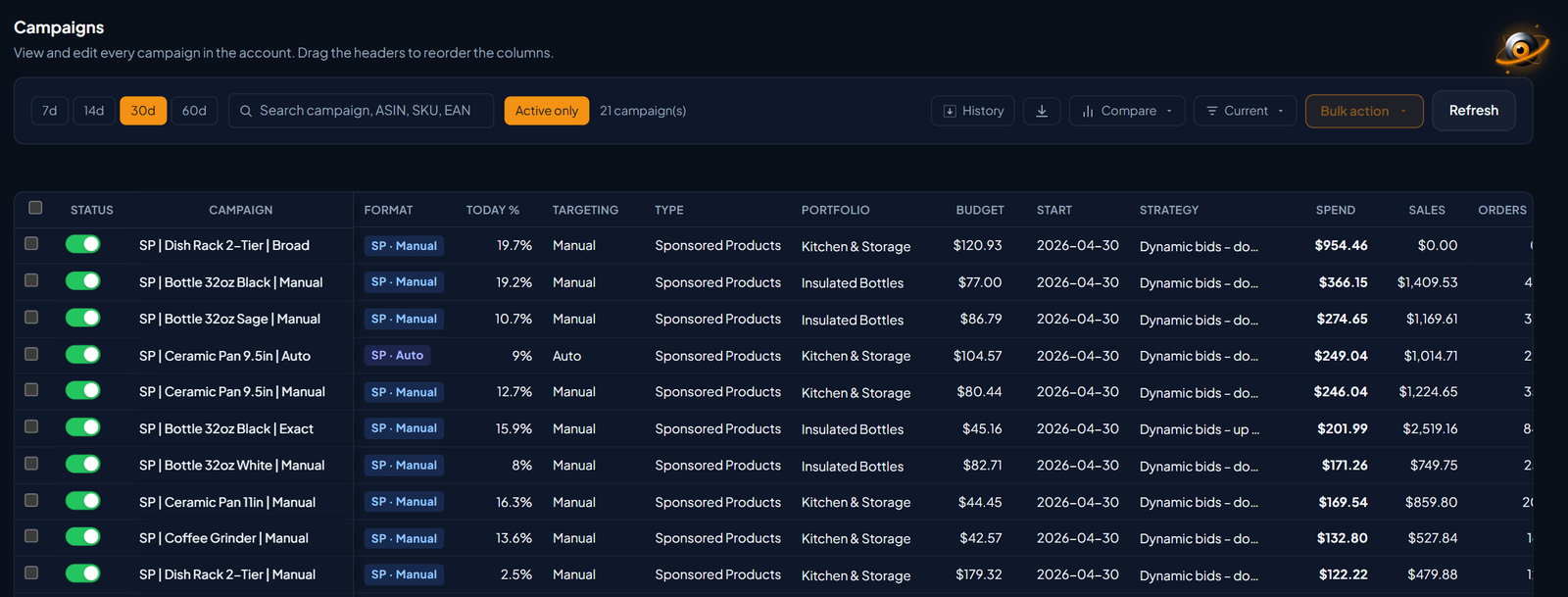
The same button is on the Products, Placements and Targets bulk screens, on the Bids tab (alongside Leak Finder) and in the Optimize campaigns panel, when you pick the ad group that receives new keywords. See the screen in Bulk Actions.
Inside each campaign
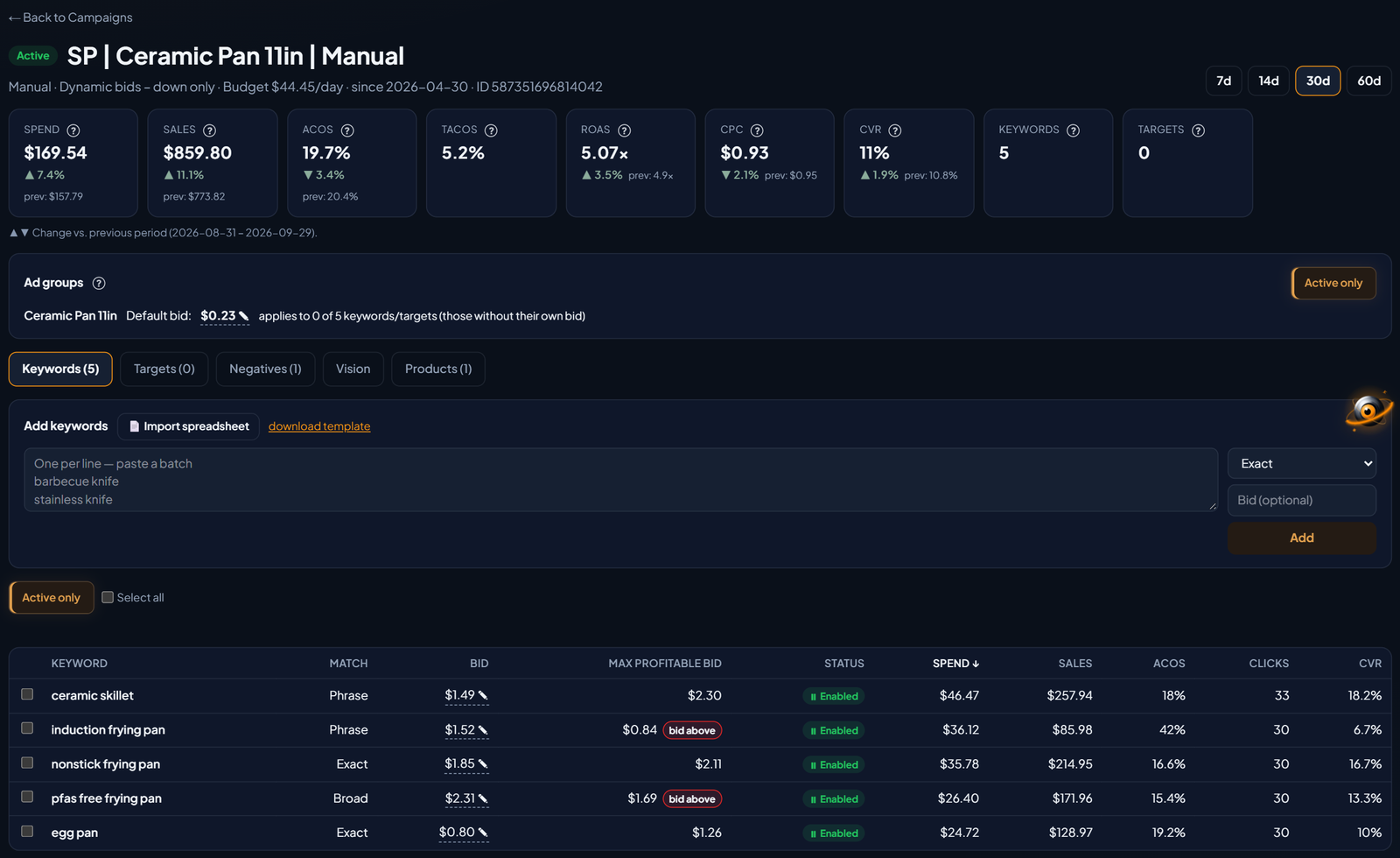
When you open a campaign (Campaigns › SP campaigns, then click its name), the button shows up in three places:
- in the Ad groups box, where it hides paused and archived ad groups (the group you are editing stays visible);
- above the Keywords table;
- above the Targets table.
A keyword or target you have just paused stays on screen so you can see the result. And with the button on, Select all only checks what is showing.
Every screen with the button
| Screen | What Active only hides |
|---|---|
| Campaign automation: ready-made templates and advanced rules | Paused or archived campaigns and ad groups |
| Bulk actions: Campaigns, Products, Placements and Targets | Paused or archived campaigns, ads and targets |
| Bulk actions: Bids tab and Optimize campaigns panel | Paused or archived keywords, targets and destination ad groups |
| Campaign detail | Paused or archived ad groups, keywords and targets |
| SB campaigns and SD campaigns | Paused or archived campaigns (and ad groups, in SD); search works by name or ID |
| Keyword optimizer (Performance tab) | Paused or archived keywords and targets |
| Create SD audience campaign | Paused or archived SP campaigns, when you choose the campaign |
| Dayparting and Heatmap | Paused or archived SP, SB and SD campaigns |
SP, SB and SD are the three Amazon Ads campaign types: Sponsored Products (product ads), Sponsored Brands (brand ads) and Sponsored Display (display ads). In Dayparting, with the button on, the table, the numbers and the map on screen count only active campaigns.
Look-alike products in Update bid
Along with Active only, the Update bid window in Live ads gained a Products column. It shows the thumbnail, name, ASIN (the product's 10-character code on Amazon) and SKU of each product in the ad group.
If you sell the same item in different colors or sizes with nearly identical names, you know exactly which ad group you are touching before you change the bid. To open it: Campaigns › Live ads, search the keyword and click Adjust bid to show up. See how the screen works in Live Ads.