Where the card is and what it shows
In the side menu, open Main › Dashboard. The Leak hunter card sits right below Results. It only shows when budget is leaking: with no leak, the card disappears and takes no space.
- First line: the amount in red and "bleeding across N terms/targets (30d)". That is what those terms and targets spent in the last 30 days.
- Second line: "Negating only the terms that spend without selling saves you ≈ $X per month." It shows when some terms have no sales at all.
- Bottom line: the rule ("Spend with no sale or ACoS ≥ 2× target") and the invitation to click and review bids.
The card always looks at the last 30 days, up to yesterday, whatever period is selected at the top of the Dashboard.

What counts as a leak
EcomVision looks at every keyword and every target in your campaigns over the last 30 days:
| Term or target in the last 30 days | On the card? | Recommended action in the Bids tab |
|---|---|---|
| Spent at least $5 and sold nothing | Yes, and it counts toward the monthly savings | Negate |
| Sold, but with an ACoS of 2× the target or more | Yes, but it stays out of the monthly savings | Lower to $X or Pause/review |
| Spent less than $5 | No (cents don't count) | — |
The ACoS target is the campaign's own target, when it has one, or the account's, in Settings. With no target set, EcomVision uses 20%. With a 25% target, for example, a term that sells at an ACoS of 50% or more is on the card. To find the right target for your margin, see How to Calculate Your Target ACoS.
How the monthly savings are calculated
Because the window is 30 days, the monthly savings equal what the terms with no sales spent in the period. The ≈ sign is a reminder that it is an estimate: it is what those terms would spend next month if they kept the same pace.
Why are high-ACoS terms left out? Because they still sell. Cutting them cuts sales too, so the amount would not be guaranteed savings. For them, the way forward is lowering the bid, not negating.
From the card to negating in bulk
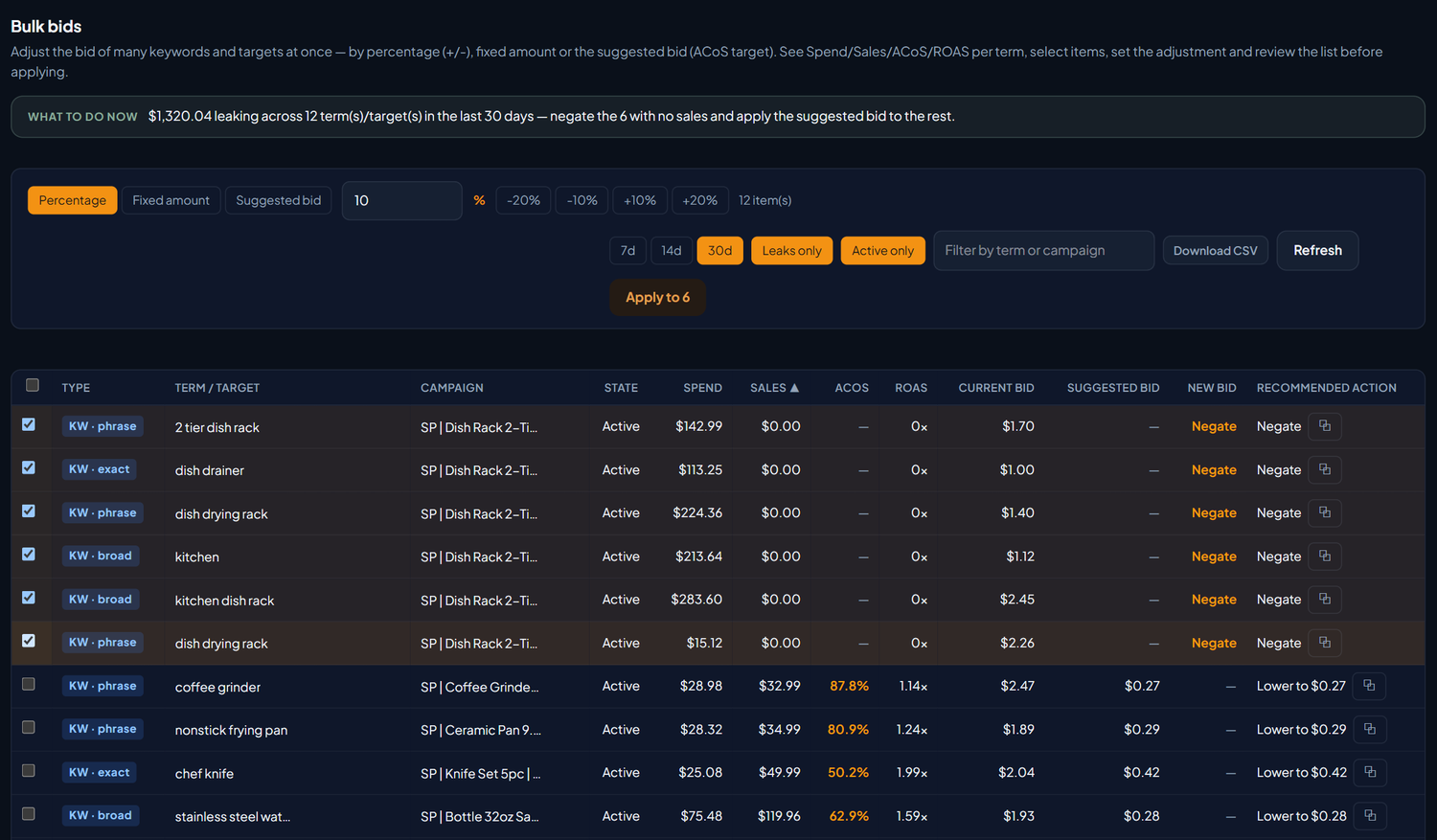
- Click the card. It opens Bulk actions, on the Bids tab, with Leaks only and Active only on and the period set to 30d.
- Read the What to do now bar. It adds up what is leaking and says how many terms with no sales to negate. For example: "$1,320.04 leaking across 12 term(s)/target(s) in the last 30 days — negate the 6 with no sales and apply the suggested bid to the rest."
- Check the Recommended action column. Negate on terms with no sales, Lower to $X on terms that sell at a high cost and Pause/review when there is no suggested bid. The ⧉ button copies the action.
- Bring the terms with no sales to the top. Click the Sales column header twice to sort from lowest to highest.
- Check the rows marked Negate. The New bid column shows Negate on each one, and the button changes to Apply to N.
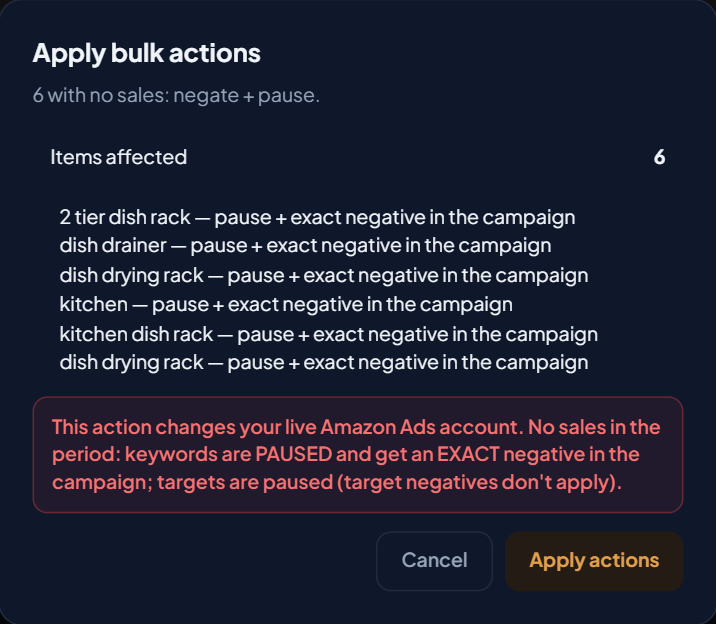
- Click Apply to N. The Apply bulk actions window lists each term with "pause + exact negative in the campaign". Check it and click Apply actions.
- Check the Result. The block shows how many keywords were paused and how many negatives were created.
This changes your live Amazon Ads account. A keyword with no sales is paused and gets an exact negative in the campaign. A product target is just paused, because a target negative doesn't apply in that case.
What about terms that sell at a high ACoS?
They show Lower to $X. The amount is the Suggested bid: the term's revenue per click times the ACoS target. A term that sold $300 in 100 clicks earns $3.00 per click; with a 25% target, the suggested bid is $0.75.
To apply it, choose Suggested bid as the adjustment type, check the rows and click Apply to N. When a term has no suggested bid, the action is Pause/review. The reasoning behind the highest bid that still makes money is in Max profitable bid.
Example: the demo account
On the EcomVision demo account (fictional products and brand), the card showed $1,320.04 bleeding across 12 terms/targets (30d) and ≈ $992.96 per month in savings:
| Group | Terms | Spend in 30 days | Counts toward monthly savings? |
|---|---|---|---|
| No sales (Negate) | 6 | $992.96 | Yes |
| With sales and an ACoS of 2× the target or more (50.2% to 87.8%) | 6 | $327.08 | No |
| Total on the card | 12 | $1,320.04 | — |
All six terms with no sales were in the dish rack campaigns, such as "dish drying rack" and "kitchen dish rack". Negating those six removes about $992.96 a month of spend that did not turn into sales. The other six sell: for them, the screen suggests lowering the bid.
Before you negate
- Look at the sample. A new term with few clicks may still sell. The $5 floor removes the noise of cents, but it doesn't replace your judgment. See when to wait in How to Spot Campaigns That Spend Without Selling.
- The negative is exact and stays in the campaign. It blocks that exact term in that campaign. To understand exact and phrase negatives and the right level for each, see How to Add Negative Keywords Without Losing Sales.
- Made a mistake? You can undo it. The Re-enable tab in Bulk actions turns paused keywords and targets back on and removes negatives added by mistake.
- The card takes time to go down. After you negate, the card keeps adding what those terms spent before, until that spend leaves the 30-day window. In the Bids tab, with Leaks only on, the terms you already handled in bulk in the last 14 days no longer show.