The problem: the same discount, product by product
November comes around and the decision is simple: 10% off every product in the store for the month. Doing it by hand is the hard part:
- One listing at a time. Open the product, work out the discounted price, fill in the dates, save. Repeat for every product.
- The minimum price takes the offer down. If the sale price falls below the minimum price saved on the listing, Amazon deactivates the offer. You only find out when sales stop.
- Discount on top of discount. If a product already has a discount campaign running, adding another one can push the price somewhere you didn't want it.
- No view of what's left. At 10% off, some products still make money and others start losing it. Seller Central doesn't show you that on the same screen.
What the Sale price tab does
- Schedules the sale price with a start and end date on every selected product, all at once. It's the same "Sale price" field, with dates, of the offer in Seller Central: the app saves the value on each Amazon listing.
- Amazon goes back to Your price on its own at the end of the period. You don't have to remember to undo anything.
- Checks Amazon before showing anything. When the tab opens, the app reads Your price, the Minimum price and the sale of each active product on Amazon. When sending, it checks everything again.
- Shows what's left per unit at the sale price and what's left today, side by side.
- Warns you about what can go wrong below each product, before you send.
- Sends one product at a time and shows the result on each row. Everything is recorded in Activity.
Example: 10% off in November on every product in the store. A $119.00 product sells for $107.10 from 11/01 to 11/30 and goes back to $119.00 afterwards.
Step by step: a November discount across the store
- Choose the account in the account selector. In the side menu, open Finance › Pricing and click the Sale price tab.
- In Start and End, choose the period. The whole next month comes filled in (for example, 11/01 to 11/30). The start can be today or up to 60 days ahead, and the period has up to 90 days.
- In Discount (%), type the percentage (for example, 10). The Sale price column of each selected product is calculated from Your price. The discount goes up to 50%. To change only one product, type the value in its row.
- Select or clear products. Active products with stock come selected. Inactive and out-of-stock products are hidden: check Show inactive and out of stock to see them. Use the search "Search by name, ASIN or SKU…" to find a product.
- Check the notes below each product and the Left per unit column. A product with a problem shows the reason and is not sent.
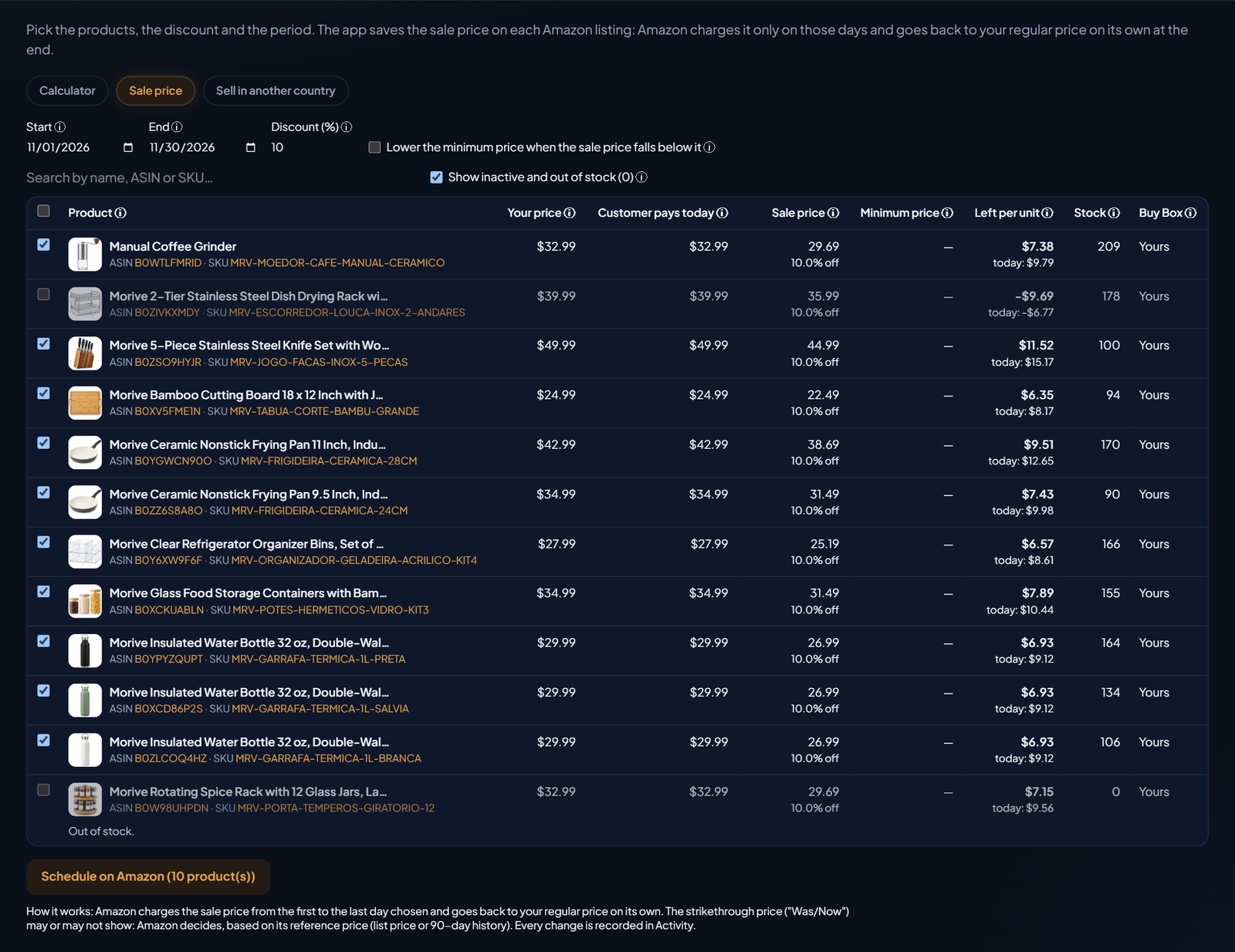
Look at the second row. At 10% off, the dish drying rack leaves -$9.69 per unit (and it's already at -$6.77 today). A discount on a product that already loses money only makes the loss bigger, so it stays unchecked. That's the math the Left per unit column shows before you send. To understand every cost that goes into it, see how to calculate real net profit per ASIN.
- If a product falls below the minimum price, you can check Lower the minimum price when the sale price falls below it. The app lowers the minimum to the sale price in the same submission. Note: the minimum does not go back on its own when the sale ends. Products with Amazon automated pricing don't accept this option.
- Click Schedule on Amazon (N product(s)). The "Schedule the sale price for N product(s)?" window opens, with the chosen period. Check it and click Schedule N product(s).
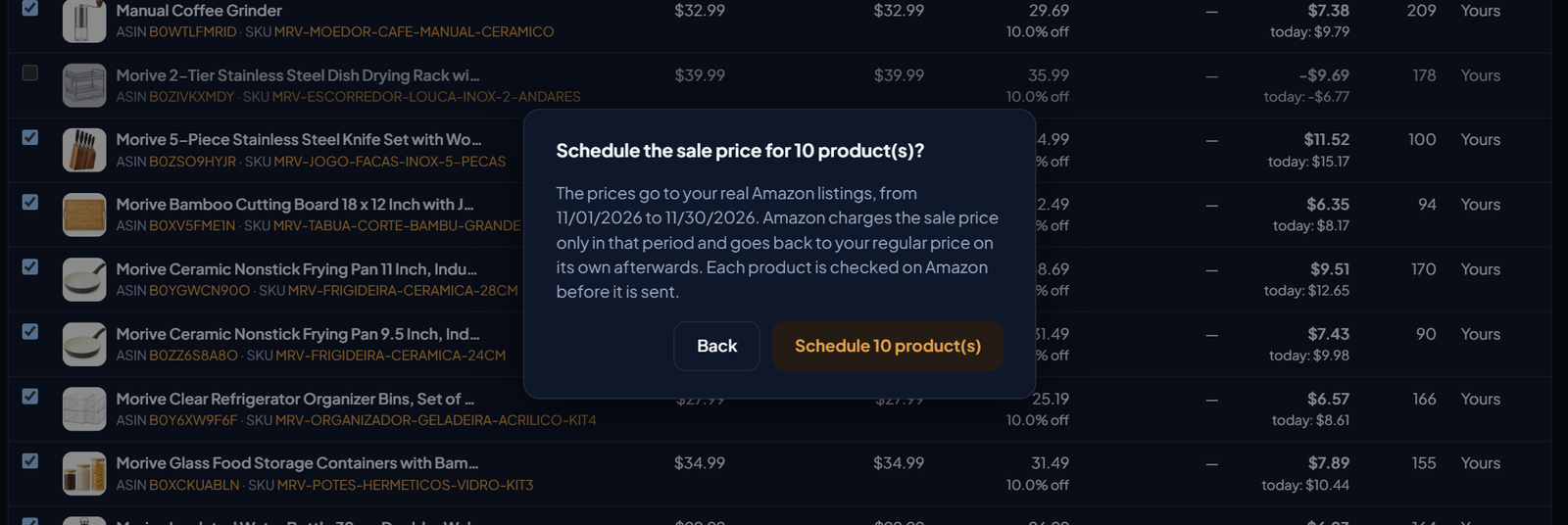
- The app sends one product at a time. Each row shows "Sending…" and then "Sent to Amazon. It takes a few minutes to show on the listing." or the rejection reason. At the end you see "Done: X sent to Amazon, Y with a problem.".
- Below each product sent, you see the line "Scheduled by the app: $X from … to …", with a Cancel button. To undo before the end, click Cancel and confirm with Cancel the sale price. The customer goes back to paying your regular price right away.
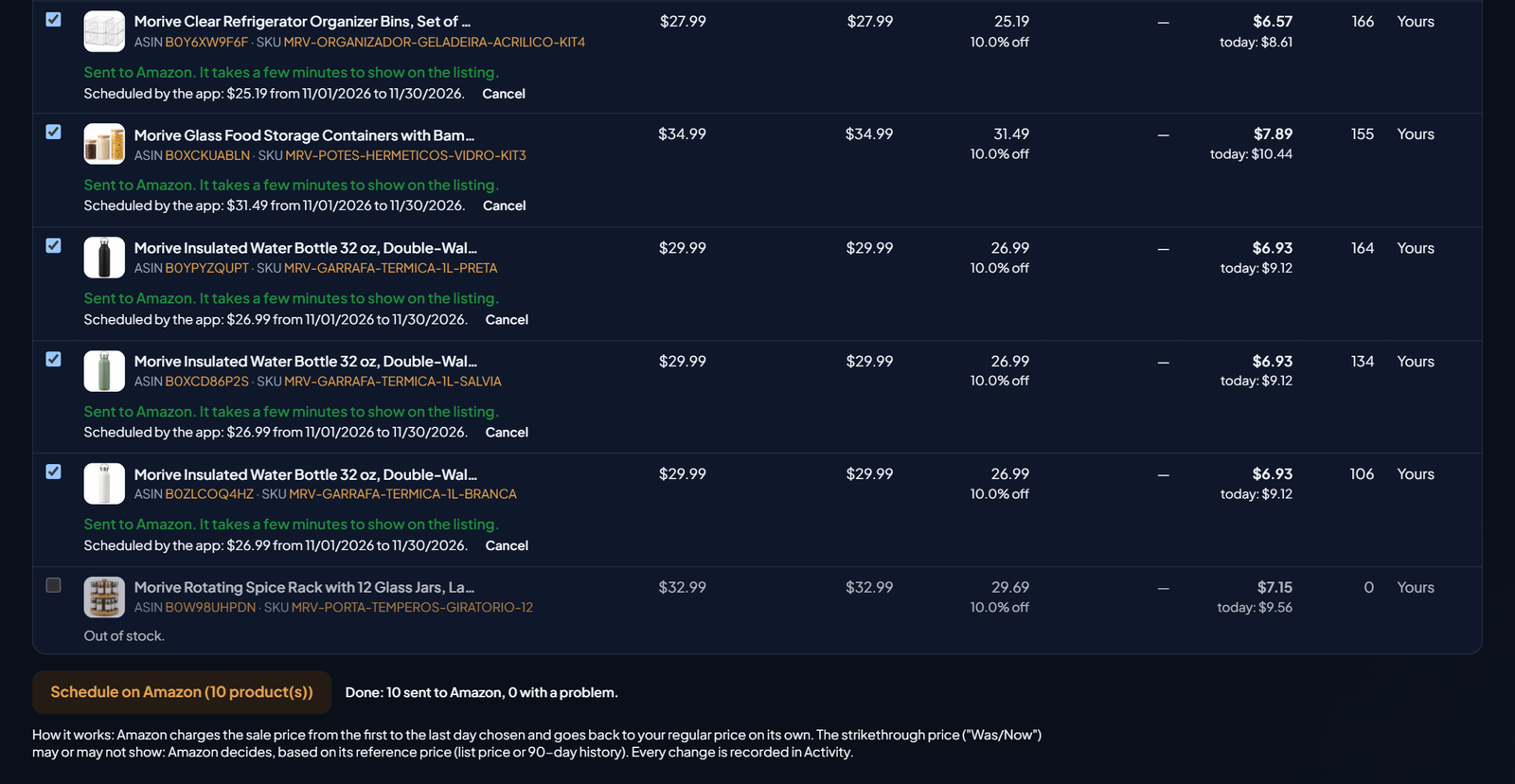
Every change is recorded in Activity ("Scheduled sale price on Amazon"). Only the account owner or the administrator can send prices to Amazon. See everything the pricing screen does in Pricing.
How to read the screen
When the tab opens, you see "Checking each product's price, minimum and sale on Amazon… (X of Y)" and then "Price, minimum and sale checked on Amazon just now". So a minimum you changed in Seller Central already shows correctly. If a product already has a sale price on Amazon, below it you see "On Amazon now: sale price $X from … to …".
| Column | What it shows |
|---|---|
| Your price | The listing price in Seller Central. The sale price is calculated from it and must be lower than it. |
| Customer pays today | What the customer pays for your offer today. It's below Your price when a discount is already active, for example a Price Discount campaign. |
| Sale price | What the customer will pay during the period, with the discount percentage below. You can type another value on this row only. |
| Minimum price | The minimum saved on Amazon for the listing. Below it, Amazon deactivates the offer. Dash = no minimum saved. |
| Left per unit | What's left from each unit sold at the sale price, after product cost, Amazon referral fee, FBA fee and tax. Doesn't include ads. Below, what's left today. |
| Stock | Units available for sale (FBA plus merchant fulfilled) at the app's last update. |
| Buy Box | "Yours" or "Another seller", with their price below. The discount only reaches the customer when your offer is the featured one. |
Below each product you see the notes: Buy Box with another seller, discount already active, Amazon automated pricing paused during the sale, out of stock and no cost registered. On the demo account in these screenshots, every product has the Buy Box and none has a minimum price saved, so only the "Out of stock." note shows up.
Before you schedule
Minimum price
If the sale price falls below the minimum price saved on the listing, Amazon deactivates the offer. That's why the app doesn't send that product without the Lower the minimum price when the sale price falls below it option. If you use it, remember: the minimum doesn't go back on its own when the sale ends. Go back to Seller Central afterwards and raise the minimum again, if needed.
Buy Box
The discount only reaches the customer when your offer is the featured one on the buy button. If another seller has the Buy Box, the note shows their price. See why the cart price and the search price can differ in Buy Box price vs. search price.
Strikethrough price ("Was/Now")
The strikethrough price may or may not show. Amazon decides, based on its reference price: the list price or the 90-day history. Don't count on "Was/Now" as a given. The sale price applies even without it.
Discount already active
When Customer pays today is below Your price, a discount is already running, such as a Price Discount campaign. The row warns you: "Already has a X% discount active (customer pays $Y). Check Seller Central before adding another discount."
Automated pricing
Amazon automated pricing doesn't reprice an offer with an active sale price. The EcomVision pricing rule also pauses while the sale price is running.
Black Friday and the lowest price in the last 30 days
Planning a Lightning Deal for Black Friday? Check the deal rules in Seller Central before signing up: Amazon usually requires a minimum discount off the lowest price in the last 30 days. If another promotion ran in that period (Lightning Deals and coupons themselves don't count), the discounted price is the one that gets recorded. A sale price running the whole month becomes that lowest price, and the deal that comes after it needs an even deeper discount. Plan the order of your promotions first. Deal types and event steps are in Amazon Black Friday promotions, screen by screen, and inventory in how to plan FBA inventory for Black Friday.
Sale price, coupons and Price Discounts
They're different things. Coupons and Price Discounts are campaigns you create in Seller Central, in the Advertising menu (under Coupons and Price Discounts), and Amazon doesn't allow creating them through the API. The sale price is a field of the listing itself, with dates, and Amazon allows saving it through the API: that's what the tab uses.
To choose between deals, coupons, price discounts and a sale price, see deals, coupons or price discounts: which promotion to use on Amazon. To create coupons and event deals in Seller Central, follow how to create deals and coupons for Amazon events.