Why your listing needs to answer questions
Keyword search is still there, but more and more shoppers talk to the shopping AI before they decide. They don't just type "ceramic frying pan 11 inch": they ask whether it works on induction, whether it comes with a lid, whether it stays nonstick after a few months, how it differs from the 9.5-inch one.
The AI answers by reading the listing. A listing written only for search, packed with keywords and adjectives, can have every field filled in and still leave these questions unanswered. When the information is missing, the AI has nowhere to get it from, and the shopper is left with the doubt.
The Listing optimizer's 0–10 score checks whether each part of the listing is filled in and follows the rules. Shopping AI readiness asks a different question: does what's written answer what the shopper wants to know? That's why it looks at it question by question.
Where it is and how to open it
- In the side menu, open Main › Listing optimizer (the same item is under Catalog and content › Listing optimizer). The Listing grade tab opens with the product list.
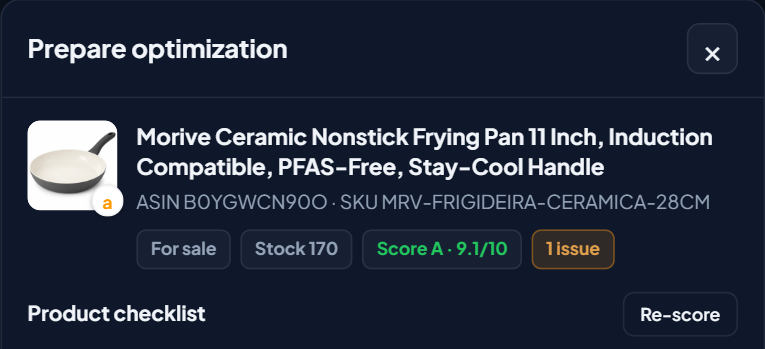
- On the product's row, click View checklist. The Prepare optimization panel opens on the side of the screen.
- In the Product checklist block, click Re-score. EcomVision re-reads the listing on Amazon and runs the AI analysis, which takes from a few seconds to about 1 minute and uses the account's AI quota.
- Below the checklist you'll see Shopping AI readiness (Rufus), with the overall 0–100 score, the level (ready, partial or weak) and the two parts: Questions specific to this product and the Shopping AI checklist.
Re-score doesn't change anything in your listing: it only reads and assesses. The block isn't saved either. If you reload the page, click Re-score again.
Part 1: questions specific to this product
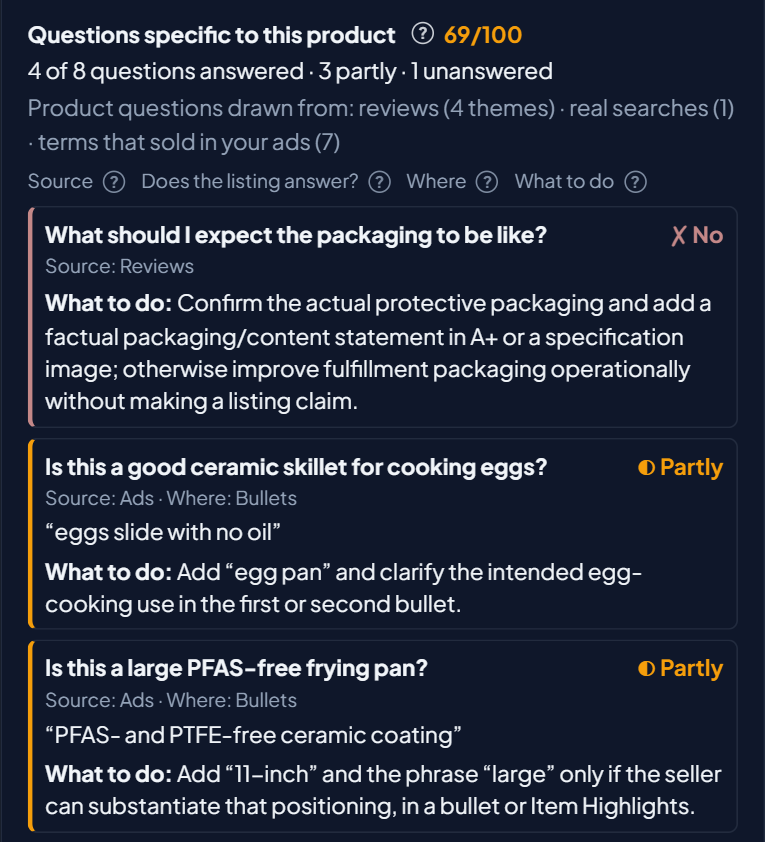
These are 6 to 8 questions unique to that product. They come first, because they are the most likely for it, and the unanswered ones sit at the top. They don't repeat the checklist questions.
Each question shows where it came from:
- Reviews: a theme shoppers mention in the product's reviews, taken from the Voice of Customer summary.
- Searches: a real search that led to the product, from Amazon's Search Query Performance (when the account has Brand Analytics).
- Ads: a term that already sold in your campaigns in the last 30 days.
- Category: a common question for this kind of product. The AI uses it when one of the sources above is missing.
The Product questions drawn from line shows how many review themes, real searches and ad terms went into the run. If the product has no review summary yet, generate it in Voice of Customer and click Re-score again: the next questions will use what shoppers say.
Part 2: the shopping AI checklist (30 questions in 6 groups)
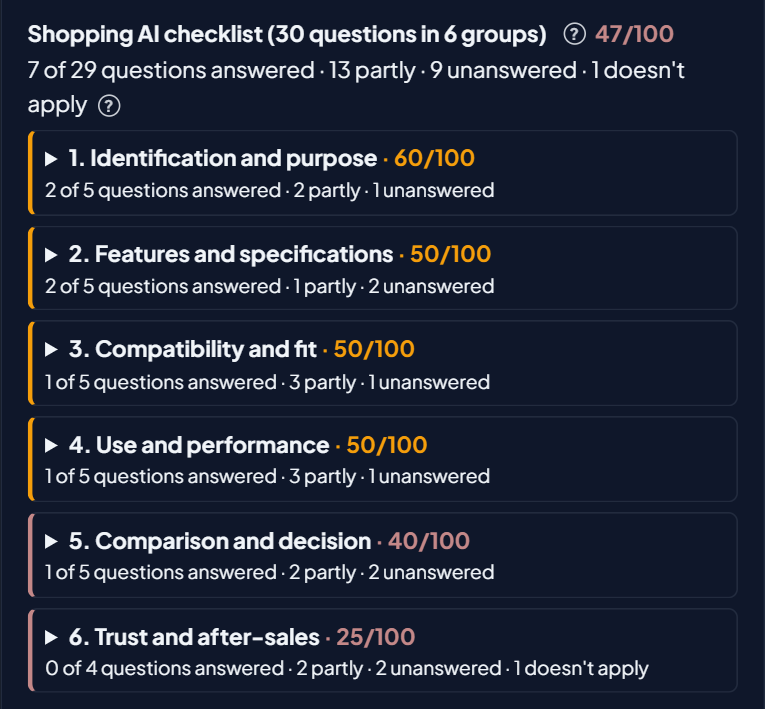
The checklist has 30 fixed questions, the same for every product, that shoppers usually ask the shopping AI. The AI assesses all 30 on every Re-score.
Each group shows up collapsed, with a summary line: the 0–100 score and the count, for example "3 of 5 questions answered · 1 partly · 1 unanswered". Click a group to open the question cards.
Two answers stay out of the score:
- Doesn't apply: the question doesn't make sense for the kind of product. For example, refills for a frying pan.
- Not assessed: the AI didn't assess the question in that run. Click Re-score again to try once more.
The 30 questions, worded as they appear on screen:
| Number | Question the shopper asks |
|---|---|
| 1. Identification and purpose | |
| 1.1 | What is this product? |
| 1.2 | What is it for? |
| 1.3 | What problem does it solve? |
| 1.4 | Who is it for? |
| 1.5 | In which situations is it most useful? |
| 2. Features and specifications | |
| 2.1 | What material or composition is it made of? |
| 2.2 | What are its dimensions, weight and capacity? |
| 2.3 | What features set it apart? |
| 2.4 | Which colors, sizes or versions are available? |
| 2.5 | What exactly comes in the box? |
| 3. Compatibility and fit | |
| 3.1 | Which brands, models or devices is it compatible with? |
| 3.2 | Does it suit my specific need? |
| 3.3 | What are the restrictions or incompatibilities? |
| 3.4 | Can it be used in different environments? |
| 3.5 | What should be checked before buying? |
| 4. Use and performance | |
| 4.1 | How do I use or install it correctly? |
| 4.2 | Does it need tools, accessories or preparation? |
| 4.3 | What proven performance or results does it deliver? |
| 4.4 | Is it easy to clean, maintain or store? |
| 4.5 | What care or precautions are needed? |
| 5. Comparison and decision | |
| 5.1 | How is this product different from similar ones? |
| 5.2 | What advantages does it have in specific situations? |
| 5.3 | Which version or size should I choose? |
| 5.4 | What limitations should I consider? |
| 5.5 | Is it the right choice for my use case? |
| 6. Trust and after-sales | |
| 6.1 | What questions or complaints come up often in reviews? |
| 6.2 | What do buyers highlight about using it? |
| 6.3 | Are there proven certifications or warranties? |
| 6.4 | How durable is it, or how long does it last, when stated? |
| 6.5 | Are there compatible parts, refills or accessories? |
How to read each card
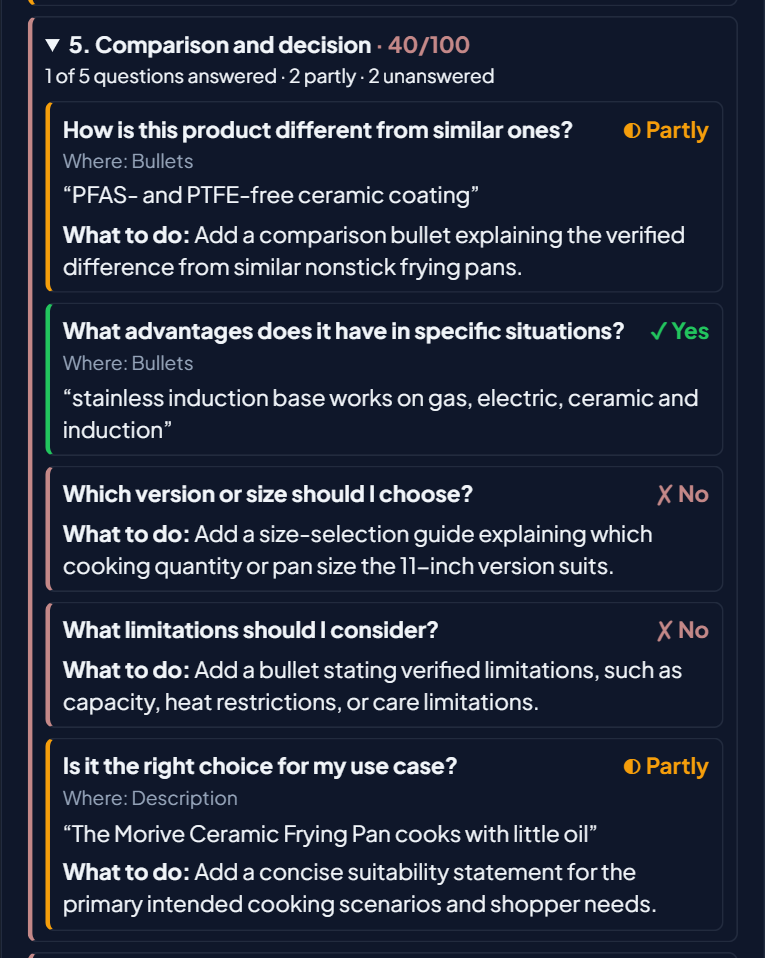
Each question becomes a card. The colored stripe on the left shows the answer at a glance: red = No, orange = Partly, green = Yes.
| On the card | What it means |
|---|---|
| The question | What a shopper is likely to ask the shopping AI before buying. |
| Does the listing answer? | Yes: the listing answers clearly. Partly: it answers, but details are missing. No: the listing doesn't answer. In the checklist, also Doesn't apply and Not assessed. |
| Source | Product questions only: Reviews, Searches, Ads or Category. |
| Where | The part of the listing that answers (Title, Bullets, Description, Product attributes or Hidden keywords) and the exact passage, in quotes. |
| What to do | What to add to the listing, and where. It shows when the answer is Partly or No. |
The passage is checked against the listing. EcomVision looks for every quoted passage in the listing that is live on Amazon. If the AI quoted a passage that isn't there, the card shows the notice "The AI quoted a passage that isn't in the listing, so it didn't count as an answer", and the question counts as No. That way the score never goes up on a made-up answer.
How the score is calculated
The score goes from 0 to 100 and is calculated by EcomVision, not by the AI:
Doesn't apply and Not assessed stay out of the math. An example: 10 questions that apply, 6 Yes, 2 Partly and 2 No. The score is (6 + 1) ÷ 10 = 70.
There is a score for each checklist group, one for the whole checklist, one for the product questions and the overall score, which puts both parts into the same calculation. The overall score also shows the level:
| Level | Score |
|---|---|
| ready | 80 or more |
| partial | 50 to 79 |
| weak | below 50 |
It's an EcomVision measurement of what's written in the listing. It isn't an Amazon score or a sales forecast.
Example: the frying pan in the demo account
In EcomVision's demo account (fictitious product and brand), the 11-inch ceramic frying pan from the Morive brand went through Re-score:
| Part | Score |
|---|---|
| Questions specific to this product | 69/100 (partial) |
| Shopping AI checklist (30 questions) | 47/100 (weak) |
| Checklist, group 5. Comparison and decision | 40/100 |
| Checklist, group 6. Trust and after-sales | 25/100 |
| Overall score | 51/100 (partial) |
The listing answers the pan's basics well: it works on induction, the handle stays cool, it's easy to clean and it says what the body is made of. The checklist shows the gaps. The listing does little to help the shopper decide (how it differs from similar pans, which size to choose, its limitations) and trust it (warranties, durability, what buyers highlight): group 6 is the weakest, at 25. Putting both parts together, the overall score is 51, at the partial level.
The way forward, in this case, is to open groups 5 and 6, read the "What to do" on each red or orange card and bring that information into the bullets and the description, always with what's true about the product.
Fix the listing and re-score
- Start with red. First the No cards in the product questions, which are the most likely. Then the checklist groups with the lowest scores.
- Read "What to do". Each card says what to add and in which part of the listing.
- Fix it in the AI Builder. On the product's row, the Fix in Builder shortcut opens the Listing optimizer's AI Builder tab with the product selected. You review the text and only publish when you confirm. If you prefer, fix it directly in Seller Central.
- Only write what's true. Size, material, what's in the box, warranty and certification must match the real product. Question 6.3, for example, asks for proven certifications or warranties: if the product has none, don't make them up.
- Re-score. After the change shows on the product page (Amazon may take up to about 24 hours to apply it), click Re-score again and compare the score.
See how the Builder writes the listing from the searches that already sell in AI Listing Builder v2, and what changes in how the shopping AI reads your listing in How to optimize listings for Rufus and COSMO.