What sinks a launch
In a launch, you accept a higher ACoS for a while to gain sales, reviews and search position. That budget only works for you if the product is ready. Some problems make the money go with no return:
- a suppressed or weak listing: the click arrives and doesn't turn into a sale;
- no stock, or stock that runs out midway: the ads stop;
- no Buy Box: the ads barely show;
- a margin that doesn't pay for the launch ACoS;
- few images, no A+ and no reviews: you can launch, but the listing converts less.
The full method, from feasibility to consolidation, is in How to launch a product on Amazon: 4-phase plan. EcomVision's checklist handles the practical part: when you create the campaign, it checks these points against the product's data.
Where it is and how to open it
- At the top of the left sidebar, check that the selected account owns the product.
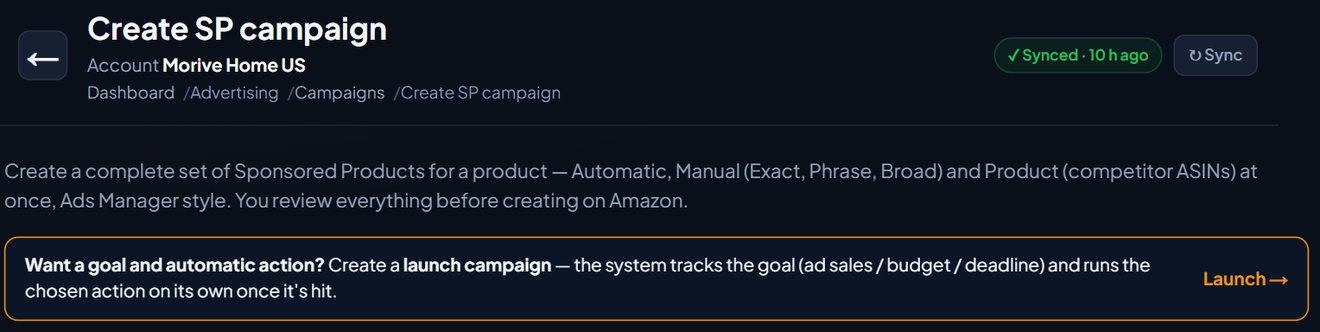
- In the sidebar, under Main, click the small arrow ▾ next to Campaigns and then Create SP campaign.
- At the top of the screen, in the "Want a goal and automatic action?" box, click Launch →. The New launch campaign screen opens.
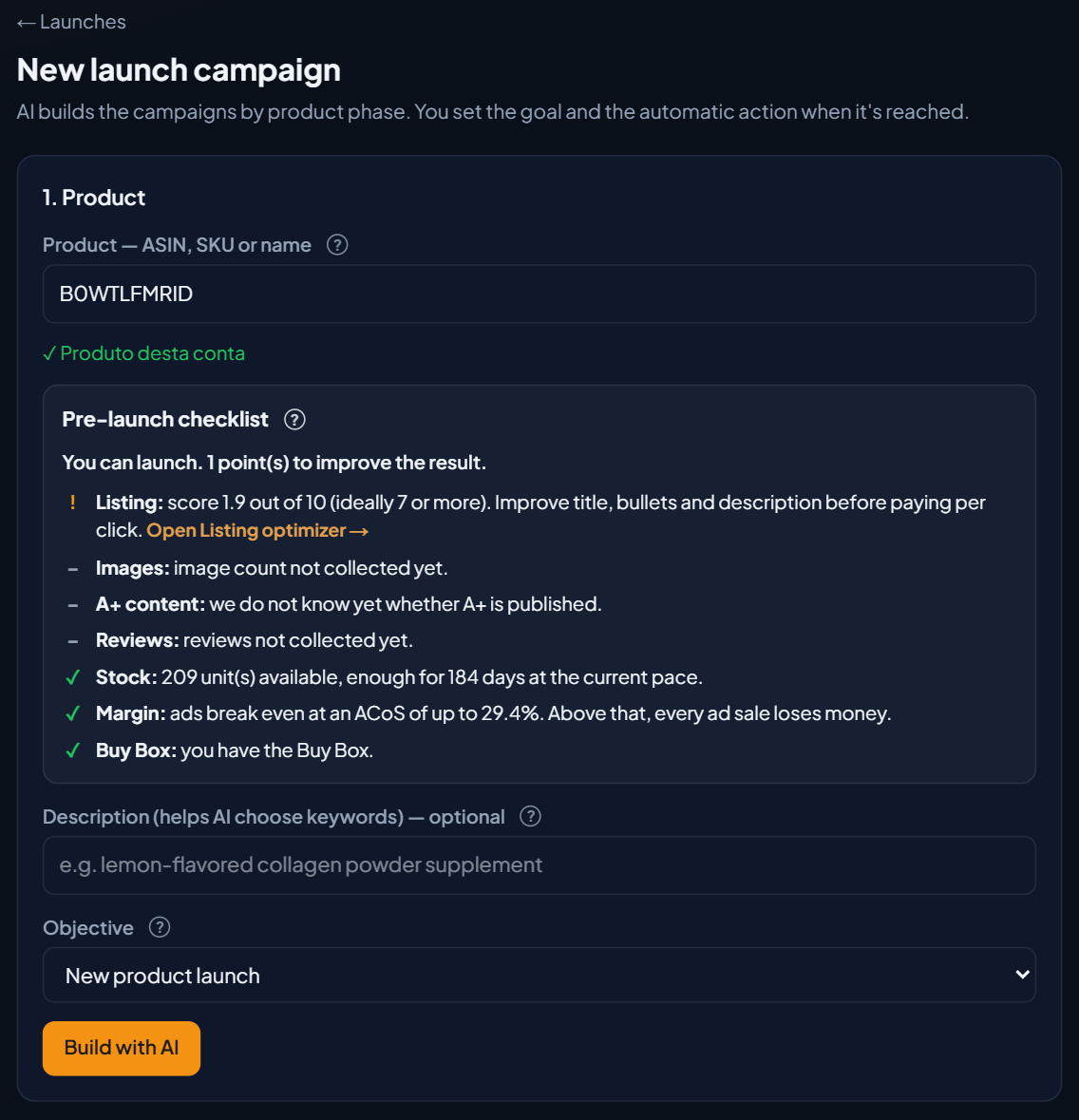
- Under 1. Product, type the ASIN, SKU or name in Product — ASIN, SKU or name and choose the product from the list. A green check confirms the product belongs to the account, and right below it the Pre-launch checklist appears.
The checklist doesn't use AI and doesn't query Amazon on the spot: it uses what EcomVision has already read from your account. That's why it shows up in seconds. It doesn't block anything either. The Build with AI button stays available, and the decision to launch is yours.
The 7 checklist points
Each point shows a symbol and a sentence about the chosen product. The rules:
| Point | ✓ Ready | ! You can launch, but results are worse | ✕ Fix it first | Shortcut |
|---|---|---|---|---|
| Listing | score of 7 or more in the Listing Optimizer | score below 7 | listing suppressed by Amazon | Open Listing optimizer → |
| Images | 6 images or more | fewer than 6 | — | Open Listing optimizer → |
| A+ content | published | no A+ | — | Open Listing optimizer → |
| Reviews | reviews with a rating of 4 or more | no reviews, or a rating below 4 | — | Open Reviews → |
| Stock | enough for 30 days or more at the current pace | enough for less than 30 days, or nothing available and stock inbound | nothing available or inbound | Open Logistics / Shipments → |
| Margin | break-even ACoS with the product cost registered | break-even ACoS calculated from the account COGS | no product cost, or a negative margin before ads | Open Costs → |
| Buy Box | you have the Buy Box | — | you don't have the Buy Box | Open Buy Box → |
A few details:
- Stock counts the units available at Amazon and the ones inbound, and says how many days they last at the current sales pace. Ideally it's 30 days or more because a launch speeds up sales: stock for less than a month tends to run out midway. If the product had no recent sales, the checklist shows the stock and asks you to check it can handle the launch volume.
- Reviews: with no reviews, the checklist suggests asking the first buyers for a review through Review Requests. With a rating below 4, it suggests looking at what buyers complain about before investing in traffic.
- Listing: the score is the one from the Listing Optimizer, from 0 to 10.
How to read the symbols and the summary
| Symbol | What it means |
|---|---|
| ✕ | Fix it before spending budget. |
| ! | You can launch, but results will be worse. |
| ✓ | Ready. |
| – | EcomVision hasn't collected this data yet. It's not zero and not a problem. |
Above the points there is a summary sentence:
- "All set to launch." when every point is ready;
- "You can launch. N point(s) to improve the result." when there are only ! points;
- "Fix N point(s) before launching: as it stands, the launch budget will go without return." when any point has ✕.
Every point with ✕ or ! brings the Open [screen] → shortcut, which goes straight to the screen that fixes it.
Margin: up to which ACoS the ads break even
The Margin point says up to which ACoS the product's ads break even, for example: "ads break even at an ACoS of up to 29.4%. Above that, every ad sale loses money." It's the margin before ads divided by the price.
For a product that sold in the last 30 days, it's the same number as the Break-even ACoS column in the Product ranking on the Dashboard (see Break-even ACoS and ad sales share by product). A product that hasn't sold yet uses the listing price and the category referral fee.
In a launch, the Launch ACOS (%) can sit above break-even for a while: that gap is the launch investment. An example with round numbers: a 30% break-even and a 40% launch ACoS. Every $100 of ad sales costs about $10 in that phase. Knowing the break-even shows what each sale costs and helps you choose the launch goal, total budget and deadline.
- If it says "calculated from the account COGS", the product has no cost of its own registered. Register the cost in Costs to get the exact number.
- If the margin is already negative before ads, the point gets ✕: the product loses money without Ads, and every ad sale adds to the loss. Review the registered cost and fees.
Example: two products on the demo account
On EcomVision's US demo account (fictitious products and numbers), on November 1, 2026:
| Point | Manual coffee grinder | Rotating spice rack |
|---|---|---|
| Summary | You can launch. 1 point to improve. | You can launch. 1 point to improve. |
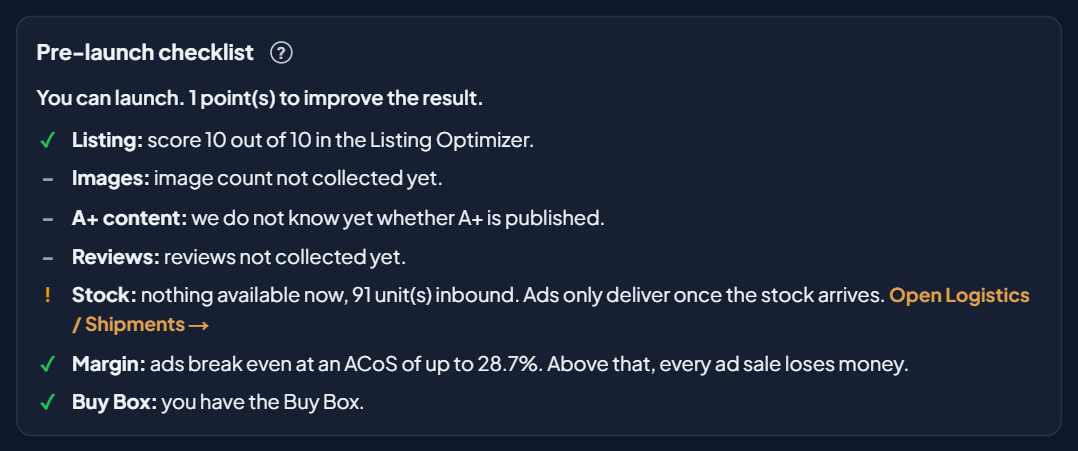
| Listing | ! score 1.9 out of 10 | ✓ score 10 out of 10 |
| Stock | ✓ 209 units, enough for 184 days | ! nothing available, 91 units inbound |
| Margin | ✓ breaks even at up to 29.4% ACoS | ✓ breaks even at up to 28.7% ACoS |
| Buy Box | ✓ has the Buy Box | ✓ has the Buy Box |
For the coffee grinder, the problem is the listing. Paying per click on a page with a 1.9 score brings visits that don't buy. The Open Listing optimizer shortcut takes you to the listing to fix it first.
For the spice rack, the listing is fine, but nothing is available right now. Ads only deliver once the stock arrives. It's worth waiting for the shipment to be received at FBA before starting the launch.
On the demo account, Images, A+ content and Reviews show a dash (–): EcomVision hasn't collected that data for the fictitious products. When the product page has already been read, these points show the image count, whether there is A+ and the review rating.
Fix it and go back to the launch
- Start with the ✕. No stock, no Buy Box, a suppressed listing, no cost or a negative margin: launching like this spends budget with no return.
- Then the !. A low listing score, few images, no A+ and no reviews make the launch more expensive.
- Use each point's shortcut. It opens the right screen for the same account: Listing optimizer, Reviews, Logistics / Shipments, Costs or Buy Box.
- Go back and choose the product again. The checklist uses the account's latest reading. A change made on Amazon shows up after Amazon applies it and EcomVision updates the data.
- Carry on with the launch: description, objective, Build with AI, goal and automatic action. The step by step is in Launch strategy with a max period and daily budget.