
Apply or Change on Amazon: the difference
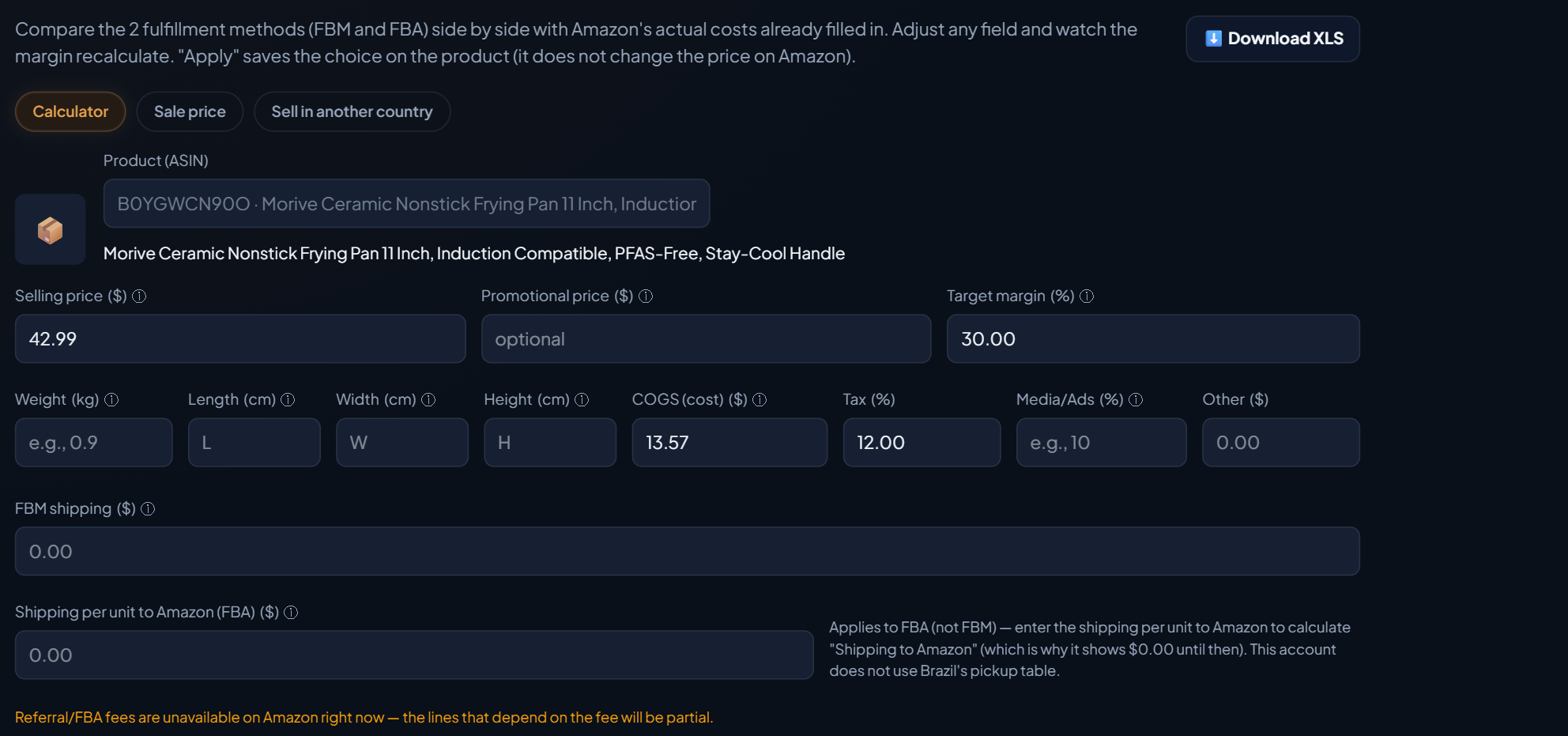
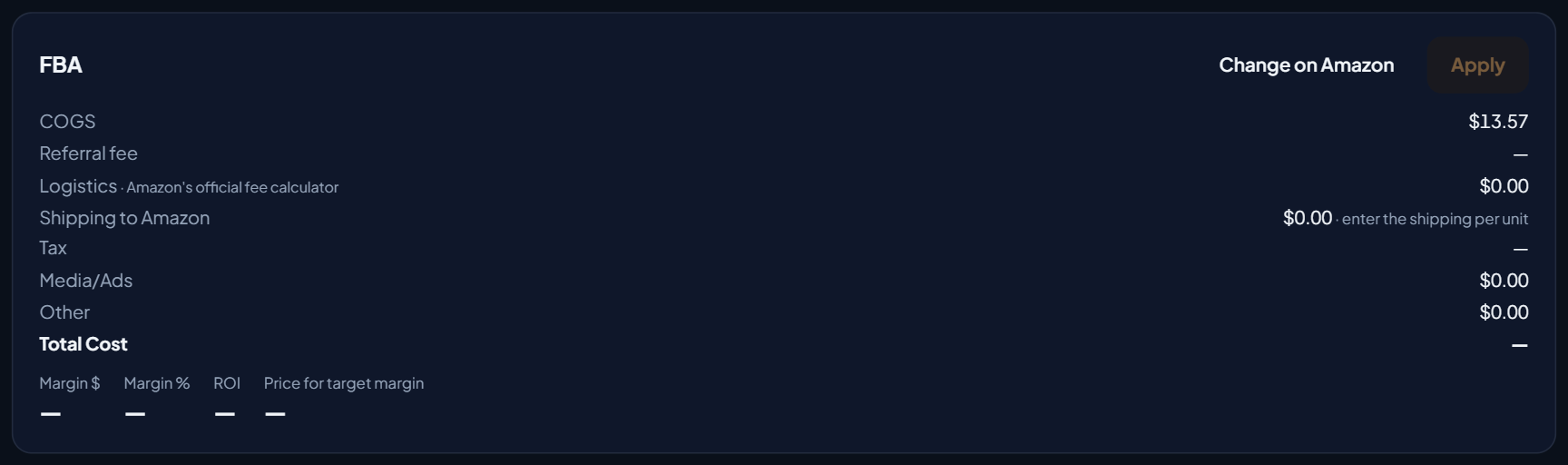
Each fulfillment method in the calculator (FBM and FBA in a US account) has two buttons at the top of its card:
| Button | What it does |
|---|---|
| Apply | Saves the chosen price and method on the product, inside EcomVision. It doesn't change the price on Amazon. |
| Change on Amazon | Sends the calculator's selling price to your Amazon listing, after you confirm. The choice is also saved in EcomVision, as with Apply. |
Before, once you found the right price in the calculator, you still had to open Seller Central and type the price again. With Change on Amazon, it goes out from the same screen.
Where it is
- In the menu, open Finance › Pricing, Calculator tab.
- Pick a product from your account in Product (ASIN). You can also get here from the Pricing button on each product, on the Costs screen.
- Adjust the fields. Selling price already comes with what the customer pays today.
- On the card of the method you use, click Change on Amazon.
The button only shows up for products in your account. For an ASIN from another store, pasted just to run the numbers, it doesn't show up. Whoever sends the price must be an owner or admin of the account in EcomVision.
The confirmation box
When you click, the Change the price on Amazon box opens below the card. It first checks the listing on Amazon, live, and then shows:
- Today the customer pays how much, and what the reference price is ("Your price" in Seller Central).
- Send from … to …, with the change in %. Only the sale price changes: the limits and the pricing rule stay saved.
- The limits saved on Amazon (minimum and maximum), when they exist, and a note if a pricing automation may readjust the price later, within that range.
- The highlighted warning: this changes the REAL price of the listing on Amazon.
- The Cancel change and Confirm and send buttons, with the price.
Nothing is sent before Confirm and send. After it, a message says the price was sent and that Amazon takes a few minutes to show the new price on the listing.
When the product has an active discount
The calculator's selling price is what the customer pays. If the listing has an active discount on Amazon, the price the customer sees is lower than the reference price. In that case, the box shows the discount and the New reference price — Your price field, already filled with the selling price divided by (1 − discount). It says how much the customer pays today and how much they will pay. You can edit the value before confirming.
To understand the difference between the list price, the add-to-cart price and the search price, read Add-to-Cart Price vs. Search Price on Amazon.
The safeguards
Sending follows the same rules as Change price now in Competitive. The confirm button stays locked when:
- the price is invalid or the same as the current one;
- the new price is outside the minimum and maximum limits already saved on Amazon;
- the change is more than 30% of the current price at once. In that case, make smaller steps or adjust on Amazon.
From a 10% change on, the box shows a warning so you check before sending. And without SP-API connected, the box can't check the listing: it asks you to connect the account's SP-API. That's what happens in the demo account, which has no connection to Amazon.
Where it's logged
Every price sent is logged in the Change log (System menu), on the Activity tab, with who did it and when. The choice is also saved on the product, as with Apply.
Want to change the price only for a while, for example for a sale event? That's what the Sale price tab is for: read Scheduled Sale Price on Amazon for Many Products. And to check whether you hold the Buy Box at that price, read How to Know If You Have the Buy Box on Amazon.