
How to switch the language
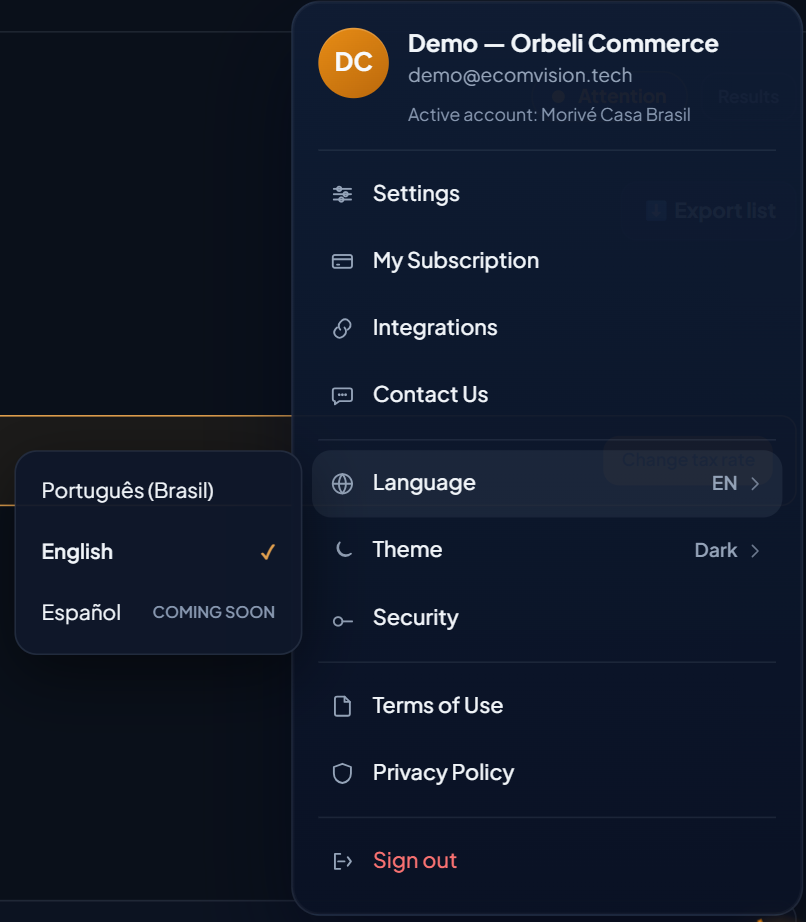
- Click your name, at the top right, to open the account menu.
- Choose Language.
- Select Português (Brasil) or English. The screen changes right away, across every menu and screen.
You can also find the language in Settings, in the Language section.
What changes with the language
- Menus and screens: Notifications, Copilot, Pricing, Academy (the interface) and the reporting and admin tools work in both languages.
- Dates and numbers: follow the chosen language. For example, 03/11/2026 in Portuguese and 11/03/2026 in English.
- Currency: follows the connected Amazon account. A Brazilian account keeps showing reais, even with the screen in English.
What stays in the original language
- Product names, listing titles and texts that come from Amazon appear the way Amazon sends them.
- The content of the Academy courses is still in Portuguese for now. The Academy interface changes, the lessons do not.
- Spanish appears in the menu with the Coming soon tag: it is not available yet.
The choice is yours
The language is a preference of your user, not of the Amazon account or the company account. Each person on the team picks their own, and the choice is saved to your profile and applies to your next sessions. Switching the language does not change any data: it only changes what you see.
EcomVision's website also has an English version, at ecomvision.tech.